
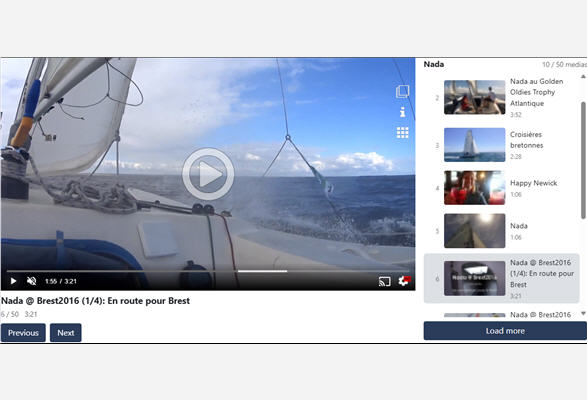
Two lines to get started
Install the SDK, specify a container, and provide your playlist ID.
npm install js-streamlike-sdk<div id="my-player"></div>
<script type="module">
import { generatePlaylistPlayer } from 'js-streamlike-sdk';
const player = await generatePlaylistPlayer('my-player', {
playlistId: 'd1a2a5b9f23759d6'
});
</script>At this point, you already have a working player: media is fetched in the order of the playlist, the first track is loaded, the list is displayed on the right with thumbnails and durations, the previous/next buttons are active, and the next video starts playing as soon as the previous one ends.
Here’s what this code looks like on the Streamlike demo playlist:
Loading the demo…
The demo is set to display four videos per page, so that the “Load More” button appears below the list.
The player also accepts a view (viewId), a company (companyId), or directly an array of media files that you’ve already retrieved (medias)—which is handy if your page calls the web service for other reasons. The web service’s sorting and filtering parameters remain accessible via playlistParams.
No installation required
The SDK has no dependencies: the published files can be used directly in a browser, from an npm CDN such as jsDelivr or unpkg. No installation or build steps are required—making it easy to set up a prototype, a standalone page, or a site that you don’t compile.
<div id="my-player"></div>

<script type="module">
    import { generatePlaylistPlayer } from 'https://cdn.jsdelivr.net/npm/js-streamlike-sdk@3.7.0/dist/index.mjs';

    await generatePlaylistPlayer('my-player', { playlistId: 'd1a2a5b9f23759d6' });
</script>
If your page cannot use ES modules—such as a CMS or an older template—a second version exposes the entire SDK via a global variable:
<script src="https://cdn.jsdelivr.net/npm/js-streamlike-sdk@3.7.0/dist/index.global.js"></script>
<script>
    Streamlike.generatePlaylistPlayer('my-player', { playlistId: 'd1a2a5b9f23759d6' });
</script>
A tip: Always pin a specific version. With @latest, a future release could change the behavior of pages you no longer control. And keep in mind that a public CDN introduces a third party into your pages: integrations that can’t accept this will go through npm and serve the SDK from their own domain.
Choosing What Information to Display
This is the setting that makes all the difference depending on the context: a news page doesn’t display the same metadata as a training portal. The “info” option lists what appears while the page is being viewed.
| Option | Default | Content |
|---|---|---|
| title | true | The media name |
| position | true | The position in the playlist, formatted as “3 / 12” |
| duration | true | The media duration |
| currentTime | false | Reading position, updated in real time |
| playlistName | false | The playlist name |
| description | false | The media description |
| releaseDate | false | The release date |
| releaseTime | false | The release time (hours and minutes) |
| views | false | The number of views |
| keywords | false | The standard keywords |
const lecteur = await generatePlaylistPlayer('my-player', {
    playlistId: 'd1a2a5b9f23759d6',
    locale: 'fr-FR',
    info: {
        title: true,
        description: true,
        releaseDate: true,
        releaseTime: true,
        keywords: true
    },
    labels: { previous: 'Previous', next: 'Next' }
});
The locale option controls the formatting of dates, times, and view counts. Interface text, on the other hand, is replaced using labels.
The same logic applies to list items using listItem: thumbnail, number, title, duration, and description. And if you want the thumbnails to animate on hover, pass them the interactive preview options:
listItem: {
    interactiveThumbnail: { mode: 'animation' }
}
Long playlists
A playlist of 300 videos doesn’t load all at once. The player fetches ten at a time, then expands the list as you watch: by the time you reach the ninth video, the next ten are already on their way. A “More” button remains available below the list as long as there are videos to load, and the counter shows your progress—“20 / 330.”
No settings are required for this to work. If you’d prefer to load everything at once—for a short playlist or a page that needs to be complete immediately—increase the page size:
await generatePlaylistPlayer('my-player', {
    playlistId: 'd1a2a5b9f23759d6',
    pageSize: 500
});
A caveat regarding long lists: animated thumbnails download the storyboard for each video as soon as it’s displayed. For a list of a few dozen entries, the benefit is worth the cost; for three hundred, that adds up to just as many requests. The static thumbnail—which is the default—is the better choice for longer lists.
A link that starts at the right spot
The classic scenario: someone wants to share the clip at 1:05 in the third video. Two options are all you need.
await generatePlaylistPlayer('my-player', {
    playlistId: 'd1a2a5b9f23759d6',
    startMediaId: 'de342d715dbb4ce9',
    startTimecode: '00:01:05'
});
The timecode accepts seconds (65) or a time format (00:01:05.500). If the requested media is not part of the playlist, the player starts playing the first item instead of remaining blank.
To automate back-and-forth navigation, enable shareParams: the player will then read ?media=...&t=... from the page’s URL and can generate the same link for the current position.
const lecteur = await generatePlaylistPlayer('my-player', {
    playlistId: 'd1a2a5b9f23759d6',
    shareParams: { enabled: true }
});

document.getElementById('partager').addEventListener('click', () => {
    navigator.clipboard.writeText(lecteur.getShareUrl());
});
The names of the two URL parameters are configurable, in case “media” and “t” are already in use on your site.
Control the player from your page
generatePlaylistPlayer returns a controller. This means you’re not limited to the buttons provided: a custom table of contents, a keyboard shortcut, or an external chapter list can control playback.
lecteur.next();                          // next media
lecteur.playIndex(2, 30);                // 3rd media, at 30 secondes
lecteur.playMedia('de342d715dbb4ce9');   // by identifier
lecteur.seek(120);                       // seek the current media
lecteur.getCurrentMedia();               // the current media's metadata
lecteur.loadMore();                      // load the next page of media
lecteur.getTotal();                      // total number of media in the playlist
Two callbacks round out the set: onMediaChange(media, index) whenever the video changes—useful for your audience tracking tool—and onPlaylistEnd() when the last track ends, if you want to play something else next. With loop: true, the playlist loops back to the beginning.
Styling the Player
Each generated element has a prefixed class, with “sl-playlist” as the default: sl-playlist-info-title, sl-playlist-item, sl-playlist-button-next… The embedded stylesheet uses only simple class selectors, so your rules will override it without any specificity battles or !important declarations.
.sl-playlist-info-title {
    font-family: "Your Font", sans-serif;
    color: #293c5a;
}

.sl-playlist-item.is-active > .sl-playlist-item-button {
    box-shadow: inset 3px 0 0 #293c5a;
}
The currently playing media item has the is-active class in the list. If you’d prefer to start with a blank page, injectStyles: false disables the default stylesheet; classPrefix renames all classes to align them with your naming convention. The list’s position can be set using listPosition: right, left, bottom, or top.
A time-saving detail
autostart: true instructs the player to start automatically. Browsers, however, block automatic playback with sound: on a page where the visitor hasn’t clicked anything yet, add muted: true to playerParams if you want the player to start immediately. When navigating within the playlist, this isn’t an issue—the user’s click serves as permission, and each subsequent video starts on its own.
Give it a try
Start with the bare minimum, enable the features that matter for your page, and then set up timecode sharing. The demo included with the SDK (demo/playlist-player.html) lets you toggle each option on the fly to find the right configuration before implementing it in your code.